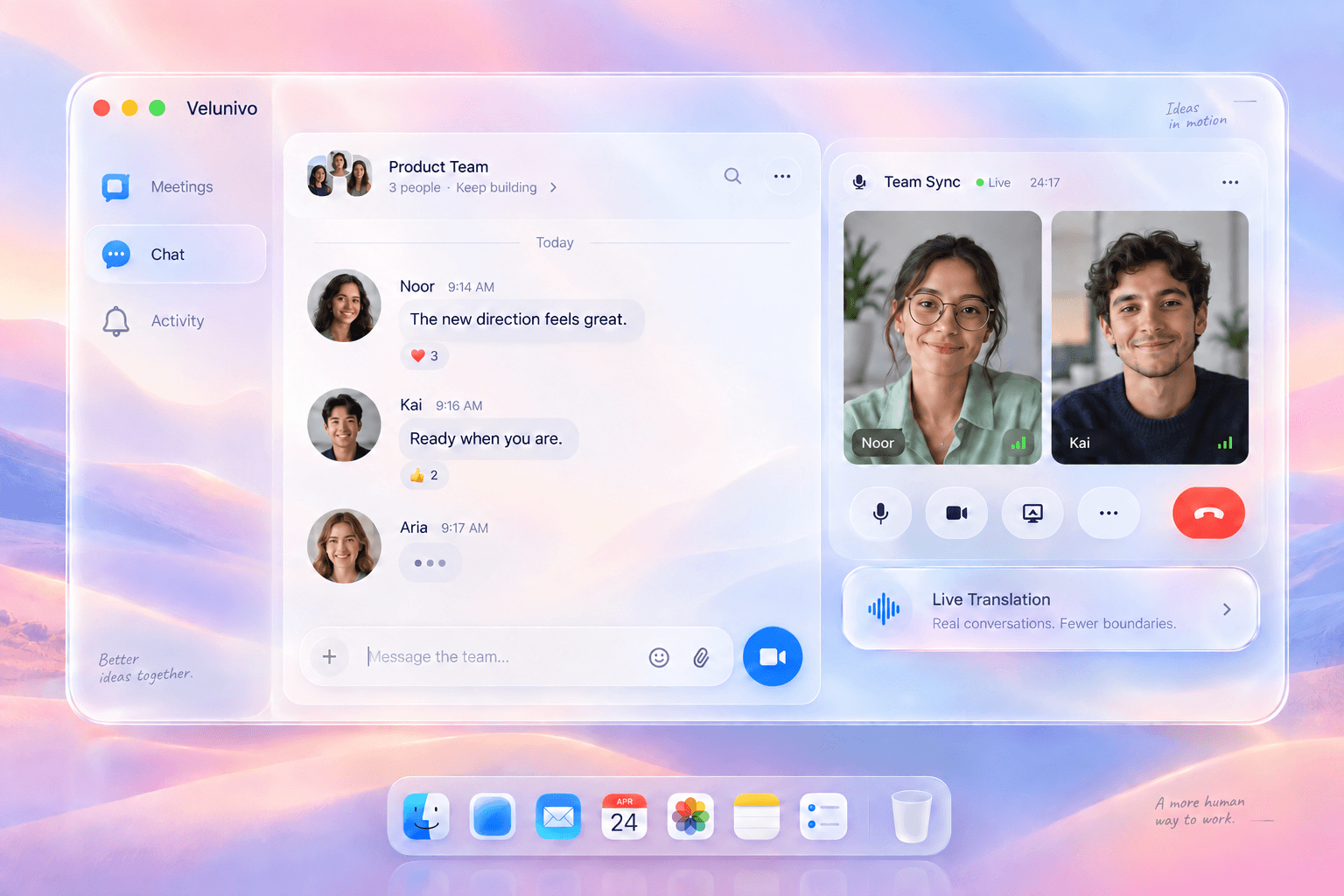
A thought shouldn’t get lost in a pause. In the Velunivo desktop app, translation arrives in up to one second, so the conversation can carry on naturally.
Velunivo desktop appWindows & macOS
up to 1 second
Velunivo in your browserWebRTC version
5–10 seconds
Translation timing varies with your connection, language and audio conditions.
A conversation that keeps moving.
Speak in your own language. Follow the original and translated words without losing the thread.
A whole workspace. One window.
Move from a quick message to a shared room or a team meeting, all in one familiar place.
A little closer to your day.
Give Velunivo a place on your taskbar or Dock. Your people are within reach while you work.
A SMALL STEP. A SHARED SPACE.
Hello, Terminal. Hello, Velunivo.
You don’t need to know the command line. Three small steps bring Velunivo to your Mac.
Open the downloaded installer and follow its on-screen instructions.
03
Make yourself at home
Open Velunivo, sign in to your account and find your team. Pin the app to your taskbar for next time.
A FEW GOOD QUESTIONS
Before you settle in.
Can I keep using Velunivo in my browser?
Yes. Your browser remains a place to manage your account, meetings and invitations. The desktop app is designed for the faster translation experience: up to 1 second, compared with 5–10 seconds in the WebRTC version.
Choose Download Velunivo above, or select Windows or macOS manually. Windows uses an EXE installer; macOS uses a DMG disk image. The guided instructions below will help you through each step.
How do I open Terminal on my Mac?
Press Command + Space to open Spotlight, type Terminal, and press Enter. You can also find Terminal in Applications → Utilities.
Read the message in Terminal before retrying. Check your connection and make sure you copied the entire command. Keep the error message so your workspace administrator can help with the next step.